Your private run journal
Keep the context behind every finish.
Companion connects completed Batomon runs to a private account. Review round results, unit contributions, and gold decisions instead of relying on memory.
Windows x64 · 1.8 MiB · Steam build 26078162
Account availability is checked when you open sign-in. Your results stay private to your account.
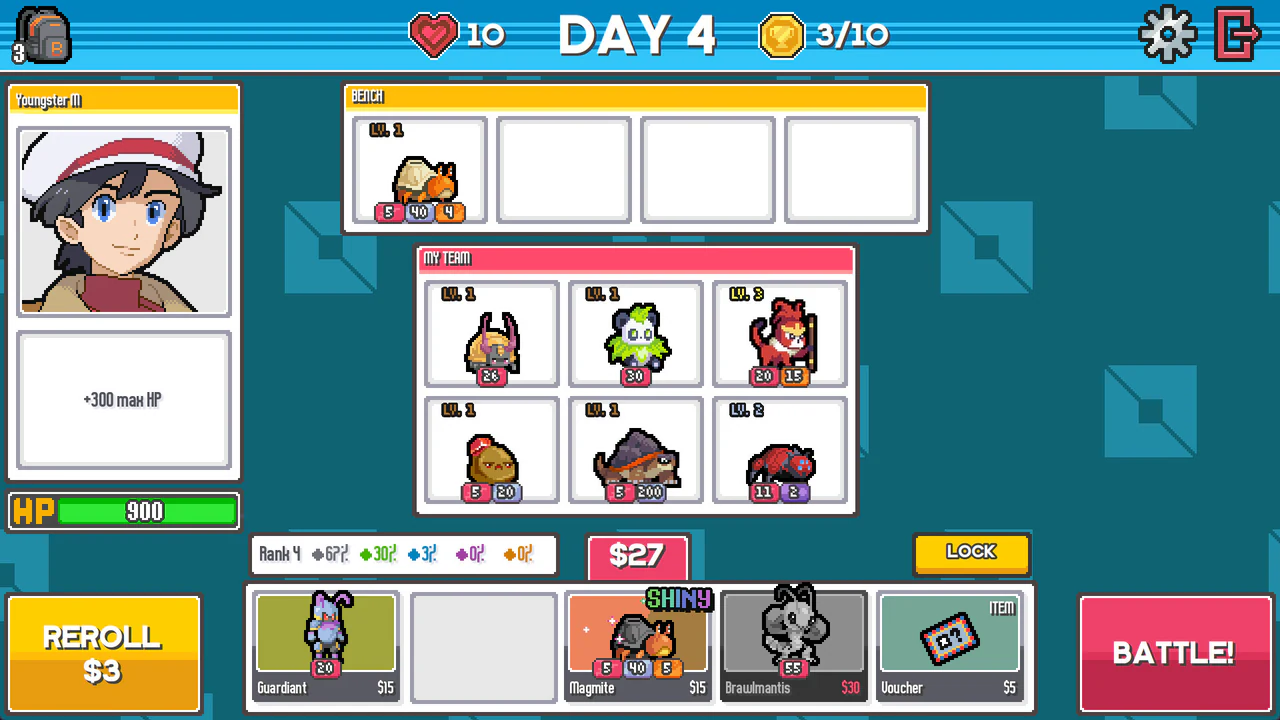
Review a decision, not just a score
- Where did the run change?
- Compare round outcomes and the recorded board before a battle.
- Which units contributed?
- Inspect recorded damage, healing, shields, and casts. Missing observations stay unknown.
- Where did the gold go?
- Review purchases, rerolls, sales, and available gold observations.
These observations do not isolate the cause of a win or provide guaranteed odds. Current reference values can differ from a recorded run's patch.
Features in Companion 0.3.16
Companion 0.3.16 connects the game and uploads your finished runs. It has no battle prediction and no Battle controls. Those features return in a later release after a source review of game build 26078162.
- Private run journal. After you connect and finish a new run, review rounds, units, and gold on this site.
Windows installer
Install Companion without changing your Steam game.
Release 0.3.16 supports Windows x64 and Steam build 26078162 only. Setup checks that exact build, then creates a separate copy for Companion.
- Keep Steam build 26078162 installed. Install Batomon Showdown on Steam first. Update the game in Steam, then run setup.
- Download and open setup. Double-click the versioned 1.8 MiB Windows setup (1,846,143 bytes) from Batomon.com.
- Choose Install. Setup finds one supported Steam library, checks it, and uses the fixed separate Companion destination. If Steam has more than one matching copy or setup cannot find it, use Browse.
- Launch Companion. Use the finish-page launch action or the new Desktop and Start Menu shortcuts. Then connect your account and play normally.
How the separate copy protects your Steam files
Setup accepts only the exact supported build. It copies your own game folder to the Companion destination, applies a small checked change there, and checks the finished copy before it becomes active. Setup never changes, renames, or deletes the original Steam folder. The download does not contain the full game, a full PCK, game DLLs, or the PCK encryption key. A wrong game build, a damaged setup, a linked path, or a running Companion copy stops setup.
Connect the game to your dashboard
Browser sign-in only opens this dashboard. It does not install Companion or link your game. Use the same email in the browser and in the separate Companion game copy.
Install the separate Companion copy
Install Batomon Showdown through Steam first. Windows Companion 0.3.16 requires Steam build 26078162. Update the game in Steam, then run Companion setup. Choose Install, or Browse if setup cannot find your Steam library.
Setup creates a separate copy. It leaves the original Steam game unchanged. The Windows installer is unsigned; compare it with the published SHA-256 checksum before you open it. SHA-256 checks file integrity, not publisher identity. A checksum does not replace a code signature.
Download Companion 0.3.16 for WindowsLaunch Batomon.com Companion
Keep Steam open. Use the Batomon.com Companion Desktop or Start Menu shortcut, or the setup action Launch the separate Companion copy.
Steam's Play button launches the original game, not this separate copy. The original game does not record Companion runs.
Connect from the title menu
At the game's title screen, select Batomon.com Companion. Enter the same email you use for this dashboard. Select Send code. Enter the 6-digit code requested by that game panel, then select Connect.
Review the Terms of Use and Privacy Policy first. Connect only if you consent to match uploads. A browser login code is not a substitute for this in-game connection.
Check Match uploads
After Connect, reopen the panel. Check Connected as and its masked email. Under Match uploads, keep Enabled on if you want to share your runs with your private dashboard. You can turn uploads off at any time.
Finish a new run in this copy
Start and finish a run while connected, with uploads enabled. A battle is not a complete run. Finish with a win, a loss, or the game's abandon action. Closing the game mid-run does not finish an upload. This connection does not import your old Steam run history.
Check the upload, then refresh
Reopen the game panel and check Pending uploads and Last upload. Keep Companion open and online while uploads remain pending. The website must process an upload before it shows a run.
Recheck connection and runsThis action reloads the dashboard once. It does not start an upload or enable background refresh.
If the connection or runs do not appear
- No Companion button in the title menu
- Check which shortcut you launched. Use the separate Companion copy, not Steam's Play button. Verify the supported build and installer version.
- No game device linked
- No game link is recorded for this website account. Check the email and complete Connect in the game. This message alone does not establish an upload or server failure.
- Connected, but no runs
- Check Match uploads and finish a new run. Compare the game's Last upload with the dashboard. A recent device contact does not prove that a run finished or completed processing.
- Code not accepted
- Request a new code from the game panel. Use that code there, not the browser login code. Check the email you entered.
- Connection expired
- Select Sign out in the game panel, then connect again with the same email. Browser sign-in does not renew the game connection.
- Offline or pending uploads
- The Offline message can indicate a network or upload error; it does not identify the cause. Check connectivity and leave Companion open for automatic retries. Do not delete local files to clear the queue.
- Wrong build or installer error
- Check Steam build 26078162 and Companion 0.3.16. Close the game before setup. Do not bypass a build or checksum error.
Battle features
Companion 0.3.16 connects the game and uploads your finished runs. It has no battle prediction and no Battle controls. Those features return in a later release after a source review of game build 26078162.
Private account access
Sign in to your own results
Use the same email as the game connection. Website sign-in uses a separate six-digit email code; it does not install the mod or enable uploads.
Your records stay private. Sign-in does not connect the game or import old Steam history. If the private service is unavailable, the page reports that without showing example records.
Email-code account access
Your website code is separate from the game connection code. No password or magic-link mode is required.
Private records stay in memory, not URLs or browser storage. A session check is required after a private page is restored.
Optional and private. Public guides, reference pages, and tools need no account. Read the privacy policy, terms, and data separation rules.